윈도우에서 프로그램을 설치하려면 직접 프로그램 제작사 홈페이지에 들어가서 설치 파일(.exe)을 다운로드해서 실행하던지 마이크로소프트 스토어에서 설치해야 하는데, 전자는 너무 귀찮고 번거로우며 후자는 느려터졌다는 단점이 있습니다.
하지만 Scoop를 사용하면 리눅스에서 그랬던 것처럼 파워셸로 간단하게 프로그램 설치하는 게 얼마든지 가능합니다.
⭐ Scoop 설치하는 법(How to install Scoop)
1️⃣ Scoop 설치(Install Scoop)
Powershell을 열고 다음 명령어를 복사-붙여넣기합니다. (Open Powershell and copy & paste next commands.)
Set-ExecutionPolicy -ExecutionPolicy RemoteSigned -Scope CurrentUser
Invoke-RestMethod -Uri https://get.scoop.sh | Invoke-Expression
2️⃣ 버킷 추가(Add Buckets)
scoop bucket add extras
scoop bucket add versions
extras와 versions 외에도 다음과 같은 버킷들이 있습니다.
(There are other buckets beside ’extras’ and ‘versions’.)
- nightlies
- nirsoft
- php
- nerd
- nonportable
- java
- games
- jetbrains
참고로, 추가한 버킷을 제거하려면 다음과 같이 명령어를 실행하면 됩니다.
(If you want to remove added buckets, execute ‘scoop bucket rm
scoop bucket rm extras
scoop bucket rm versions
3️⃣ 프로그램 설치(Application Installation)
scoop install powertoys everything
위에서 powertoys와 everything은 프로그램의 이름입니다.
원하는 프로그램의 이름을 입력하시면 됩니다.
(‘You can input program name you want to install instead of ‘powertoys’ and ’everything’)
프로그램 제거는 다음 명령어와 같이 하시면 됩니다.
(You can remove programs like below.)
scoop uninstall powertoys everything
⭐ 기타(Etc)
💧 Scoop 프로그램 설치 위치(Scoop program location)
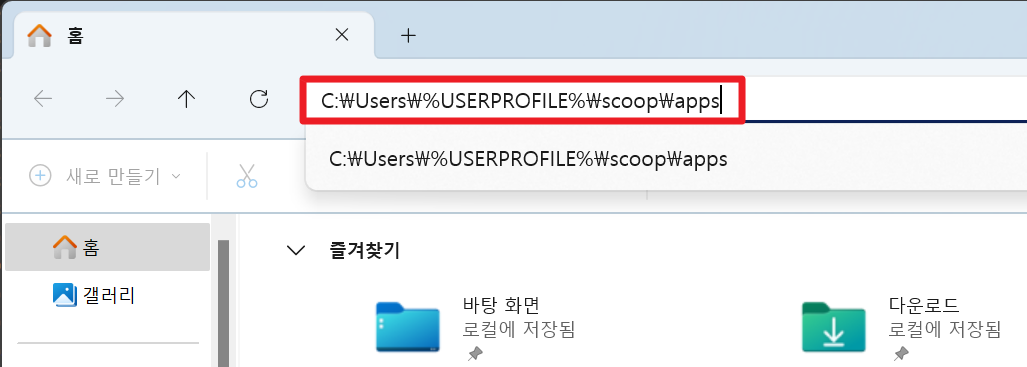
아까 scoop install로 설치한 프로그램들은 ‘C:\Users%USERPROFILE%\scoop\apps’ 경로에 설치되어있는 것을 확인하실 수 있습니다.
파일관리자 주소창에 **‘C:\Users%USERPROFILE%\scoop\apps’**를 입력하고 엔터키를 누르면 됩니다.
(There are programs you installed by scoop is located in ‘C:\Users%USERPROFILE%\scoop\apps’ as you see.
Input ‘C:\Users%USERPROFILE%\scoop\apps’ in the URL line of the file explorer and press Enter key. You will get there then.)
💧 Scoop으로 설치할 수 있는 프로그램 목록(Scoop program list)
https://bjansen.github.io/scoop-apps/?query=picpick
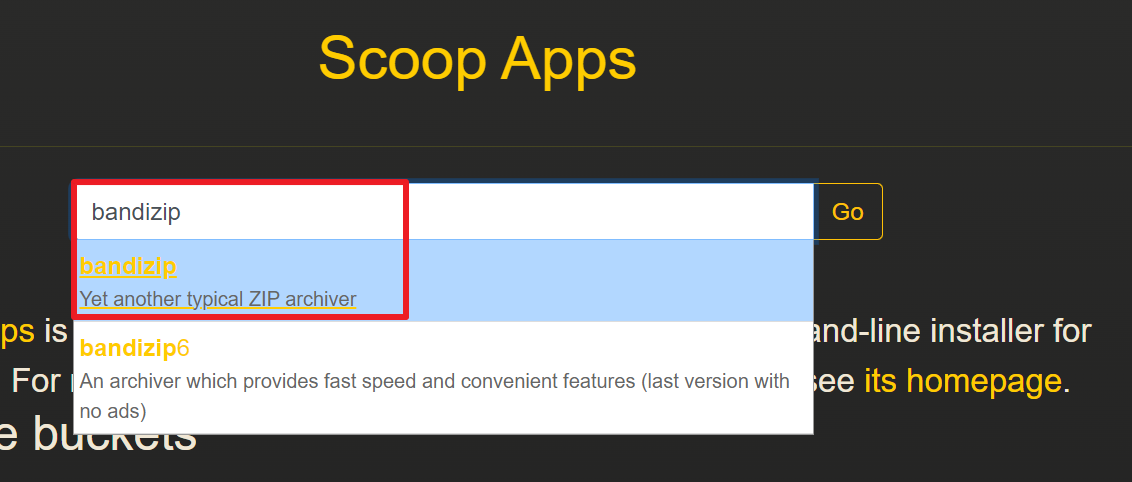
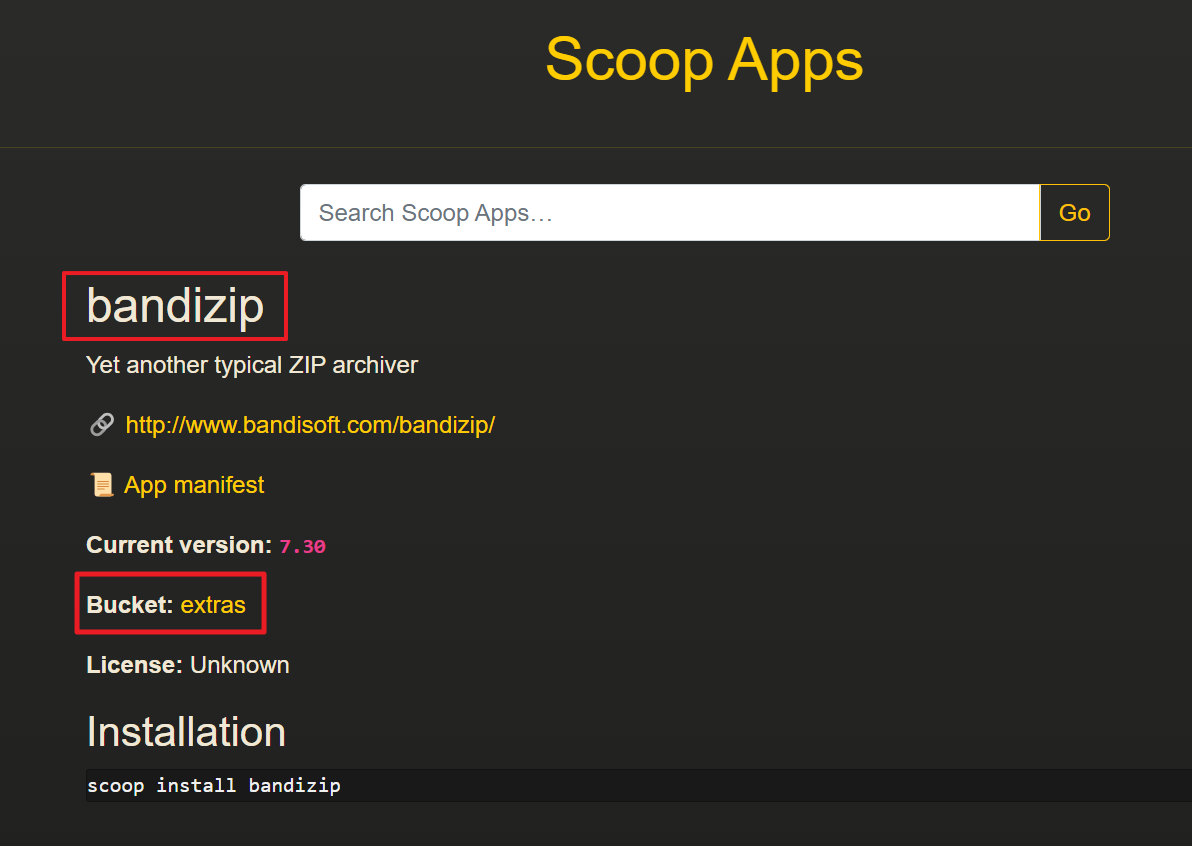
위의 링크에서 프로그램 이름과 해당 프로그램이 있는 버킷명을 확인할 수 있습니다.
(You can find out whether specific program is in the scoop bucket and what that bucket is by searching in the above link.)